How to Remove a Friend on Snapchat Without Blocking Them
We often add people on Snapchat and stay connected with them for a long time.
But sometimes the conversation stops, you lose contact, or you realize that your friends list contains people you no longer know or talk to.
You do not have to block the person. Snapchat has a simple Remove Friend option that quietly takes them off your friends list.
In this guide, I will show you how to remove a friend on Snapchat in a few simple steps.
What Does Removing a Friend on Snapchat Mean?
Removing someone ends the friendship connection between your accounts.
The person will no longer appear as one of your Snapchat friends. They will also lose access to your private Stories and friendship Charms, although they may still see anything you share publicly.
This option is useful when:
- You no longer talk to the person.
- You added someone by mistake.
- You want to clean up your friends list.
- You do not want them viewing your private Stories.
- You want to remove them without completely blocking their account.
This guide is for removing someone who is already your friend. If they never accepted your request, follow the separate guide about canceling a sent friend request on Snapchat.
How to Remove a Friend on Snapchat
Follow these simple steps to remove someone from your Snapchat friends list.
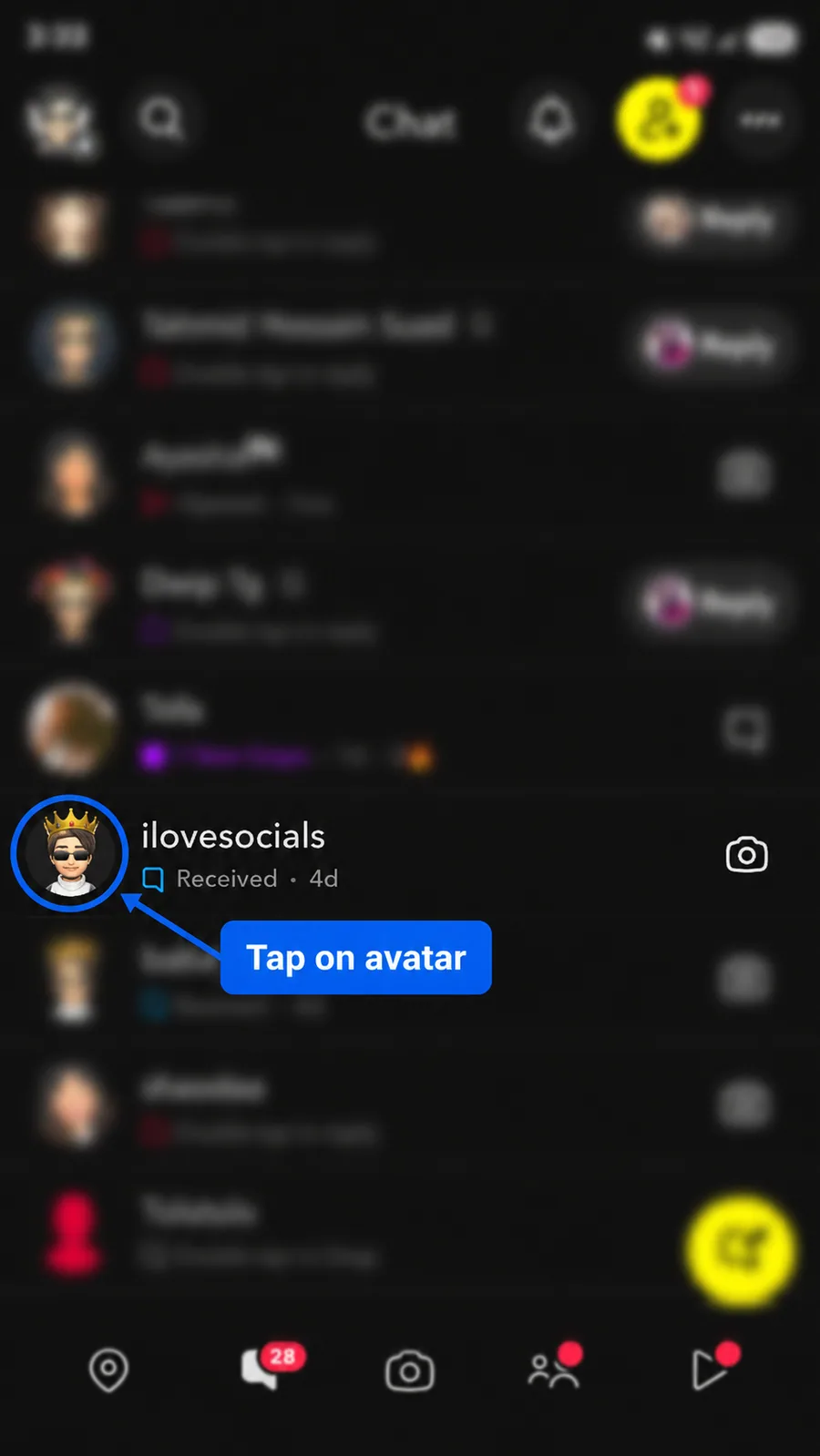
Step 1: Open Chat and Tap Their Avatar
Open Snapchat and go to the Chat screen.
Find the person you want to remove. Tap their Bitmoji or profile avatar beside the conversation to open their Friendship Profile.
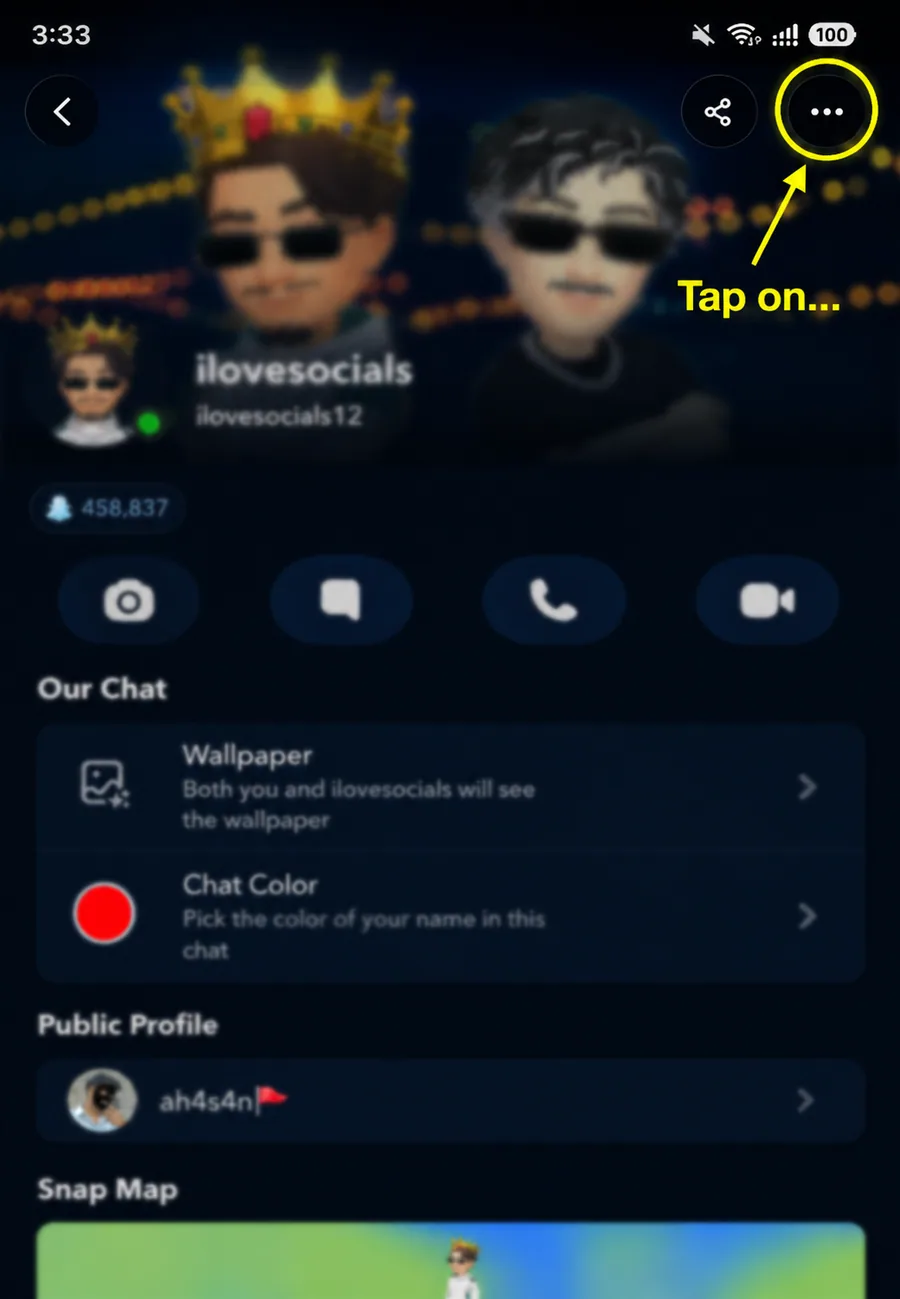
Step 2: Tap the Three-Dot Menu
After opening the person's Friendship Profile, look at the top-right corner.
Tap the three-dot icon to open the available friendship options.
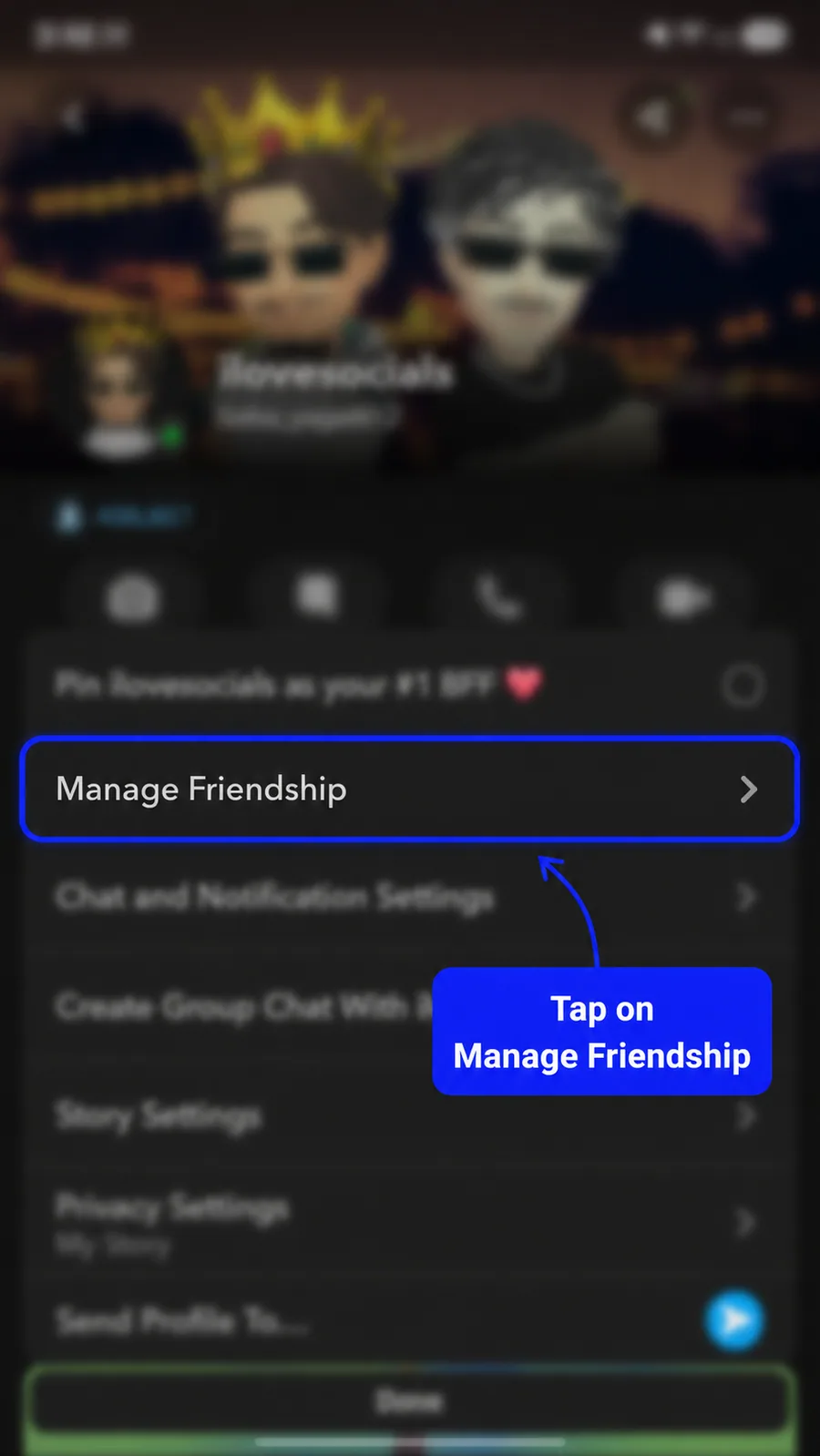
Step 3: Select Manage Friendship
A menu containing several options will appear.
Tap Manage Friendship.
This opens the controls you can use to manage your connection with that person.
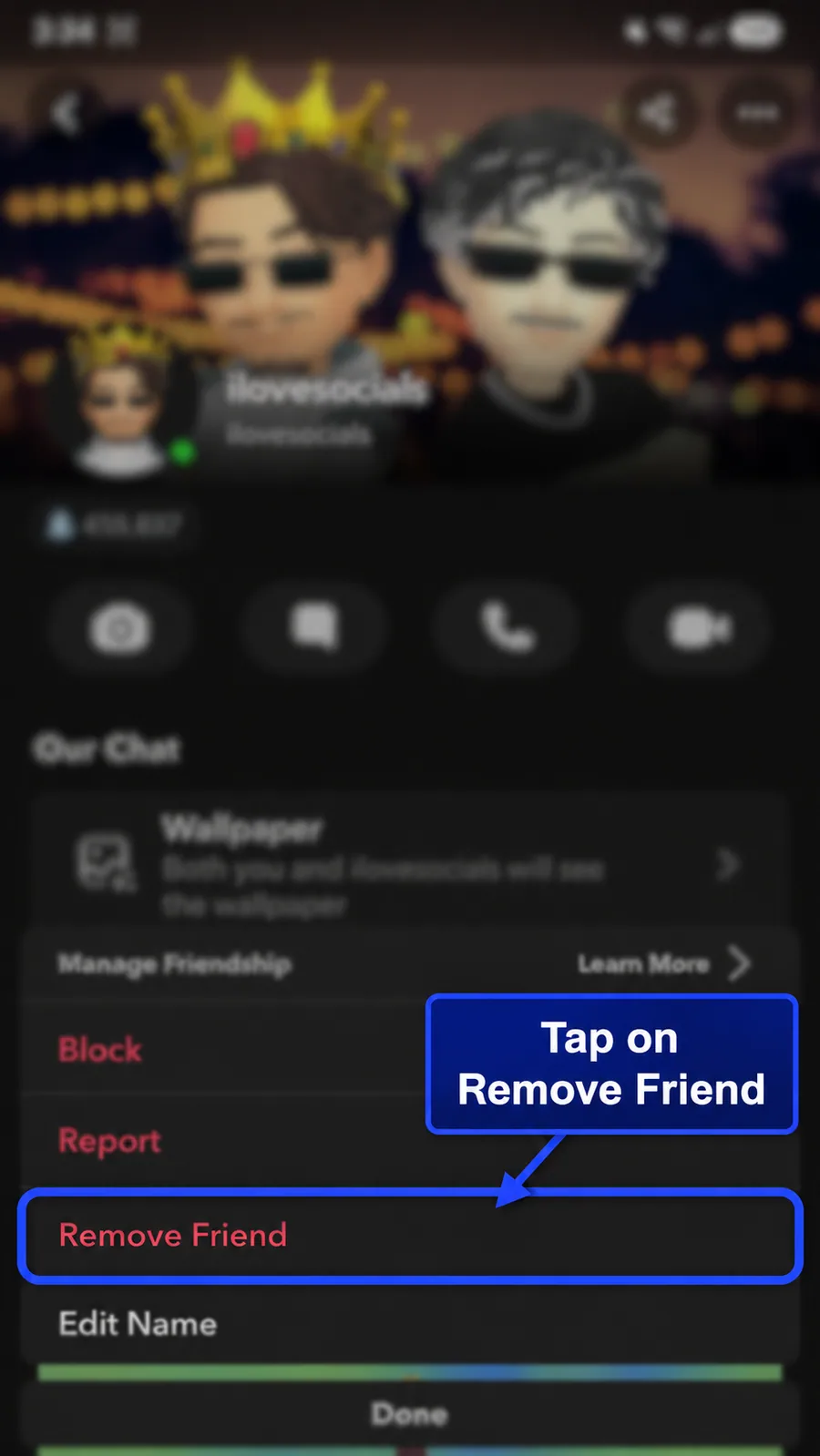
Step 4: Tap Remove Friend
Inside the Manage Friendship menu, tap Remove Friend.
Be careful not to select Block unless you want to apply stronger restrictions to the person.
Step 5: Confirm by Tapping Remove
Snapchat will ask you to confirm your choice.
Tap Remove to take the person off your friends list.
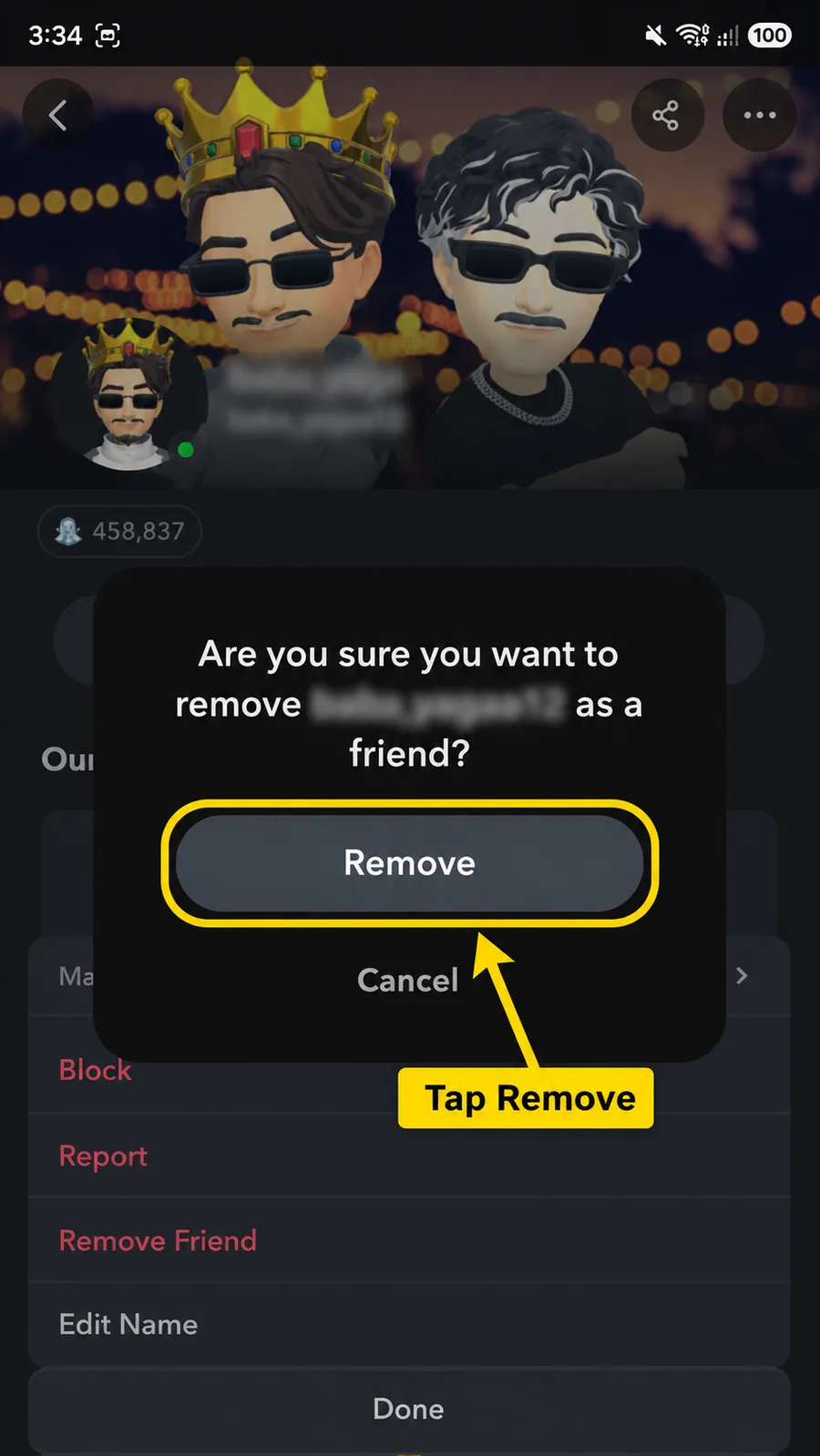
That's it. You have successfully removed the person from your Snapchat friends list.
What Happens After You Remove a Friend?
After you remove the person:
- They disappear from your Snapchat friends list.
- They can no longer view your private Stories.
- They lose access to friendship Charms.
- Their content should be removed from your Stories screen.
- They may still see content you have made public.
- They are not automatically blocked.
- They may still be able to contact you, depending on your privacy settings.
Removing a friend is not the same as blocking them. Use Block when you want to prevent stronger forms of contact and interaction.
Will They Know You Removed Them?
Snapchat does not directly announce the removal to them.
However, the person may eventually notice if:
- They can no longer view your private Story.
- Your Friendship Profile changes.
- They search for you and see an Add button.
- Their messages are affected by your privacy settings.
So, they may figure it out later, even though Snapchat does not directly tell them.
Can the Removed Person Still Message You?
It depends on your privacy settings.
Snapchat lets you choose who can contact you. After removing someone, they may no longer be able to send you Snaps, Chats, or calls unless your settings still allow contact from them.
To review this setting:
- Open your Snapchat profile.
- Tap the Settings icon.
- Go to App & Privacy.
- Tap Contact Me.
- Select the option you prefer.
Can You Add Them Again Later?
Yes.
Removing a friend is not permanent. You can search for their username or display name and send them another friend request later.
They may need to accept the new request before both of you become Snapchat friends again.
Can You Remove Multiple Friends at Once?
Snapchat does not provide a simple bulk-removal button for clearing your entire friends list.
You normally need to repeat the process for each person:
- Open their profile.
- Tap the three dots.
- Select Manage Friendship.
- Tap Remove Friend.
- Confirm the removal.
Avoid websites or third-party apps that promise to remove hundreds of friends automatically. Giving them your Snapchat login details could put your account at risk.
Why Can't I See the Remove Friend Option?
There may be a few reasons.
The Person Is Not Currently Your Friend
The Remove Friend option appears for an existing friend. Someone who never accepted your request may appear as a one-way connection instead.
Open Manage Friendship
Make sure you tap Manage Friendship after opening the three-dot menu. The Remove Friend option appears inside that section.
Try Pressing and Holding Their Name
Go to Chat, press and hold the person's name, and select Manage Friendship. Snapchat supports this method as well.
Update Snapchat
Open the App Store or Google Play Store and install the latest version of Snapchat.
Restart the App
Close Snapchat completely and open it again if the menu is not loading correctly.
Final Thoughts
Your Snapchat friends list can become crowded with people you no longer know or talk to.
Fortunately, removing someone is simple. Open their Friendship Profile, tap the three-dot menu, select Manage Friendship, choose Remove Friend, and confirm your decision.
The person will lose access to your private Stories and friendship Charms, but they may still see public content or contact you depending on your privacy settings.
If you need stronger restrictions, use the Block option instead. Otherwise, Remove Friend is an easy way to clean up your friends list without completely blocking the person.
Frequently Asked Questions
Q - How do I remove someone from my Snapchat friends list?
Open their Friendship Profile, tap the three dots, select Manage Friendship, tap Remove Friend, and confirm by tapping Remove.
Q - Will Snapchat notify them?
Snapchat does not directly announce that you removed them, although they may notice changes later.
Q - Can they still see my private Story?
No. Removed friends lose access to your private Stories and friendship Charms.
Q - Can they still see my public Story?
Yes. Removing someone does not stop them from viewing content you have made public.
Q - Can they still message me?
Possibly. It depends on whether your Contact Me setting allows only friends or also people saved in your phone contacts.
Q - Does removing a friend block them?
No. Removing and blocking are separate actions. Blocking applies stronger restrictions to the account.
Q - Can I add the person again?
Yes. Search for their account and send them a new friend request.
Q - Is removing a friend the same as canceling a request?
No. Removing a friend ends an existing friendship. Canceling a request removes a connection that the other person never accepted.
Q - Is removing a friend the same as unfollowing?
No. Removing ends a mutual friendship. Unfollowing mainly stops you from following an account or seeing its followed Stories.
Official sources
These official help pages were used to check the platform steps and rules in this guide.