How to Block Someone on Snapchat Without Them Knowing
Sometimes removing a person from your friends list is not enough.
They may continue trying to contact you, send unwanted Snaps, or make you feel uncomfortable. In situations like this, blocking them gives you more control over who can interact with you on Snapchat.
Once blocked, the person can no longer send you private Snaps or Chats, view your regular Stories or Charms, or see your Snap Map location. Snapchat also does not send them a direct notification about the action.
In this guide, I will show you how to block someone on Snapchat in a few simple steps.
What Does Blocking Someone on Snapchat Mean?
Blocking someone cuts off direct communication between your account and theirs.
After you block a person, they cannot privately send you Snaps or Chats, add you to new groups, view your regular Stories or Charms, or see your location on Snap Map. Their account also disappears from your Friends Feed and normal search results.
This can be useful when:
- Someone keeps sending unwanted messages.
- You no longer want them contacting you.
- The person is making you uncomfortable.
- You do not want them viewing your private activity.
- Removing them from your friends list is not enough.
- You want to stop future friend requests from that account.
Blocking is stronger than simply removing a friend. A removed friend may still see public content or contact you depending on your privacy settings, while blocking stops direct interaction between both accounts.
How to Block Someone on Snapchat
Follow these simple steps to block one of your Snapchat friends.
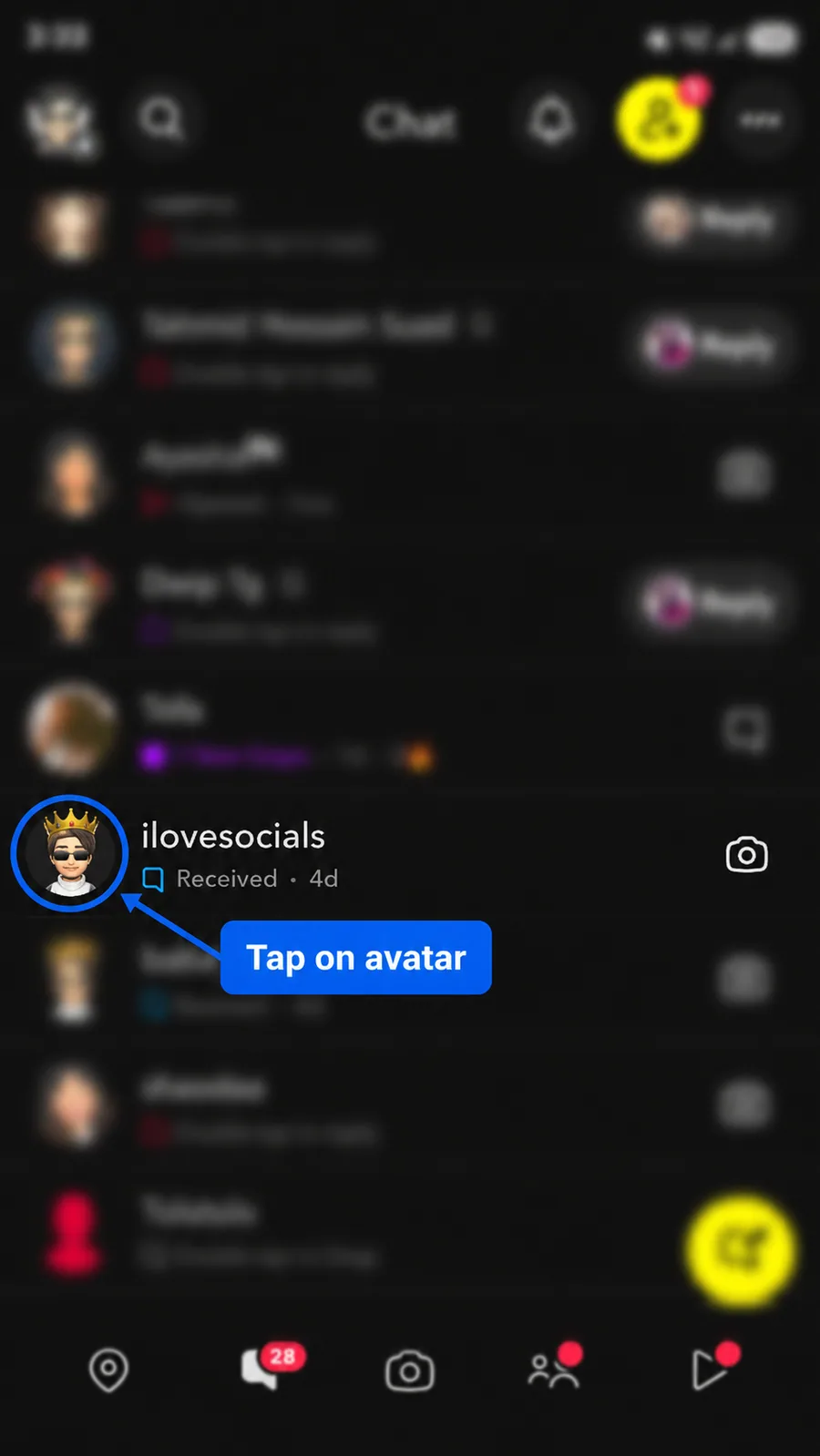
Step 1: Open Chat and Tap Their Avatar
Open the Snapchat app and go to the Chat screen.
Find the person you want to block. Tap their Bitmoji or avatar beside the conversation to open their Friendship Profile.
Step 2: Tap the Three-Dot Menu
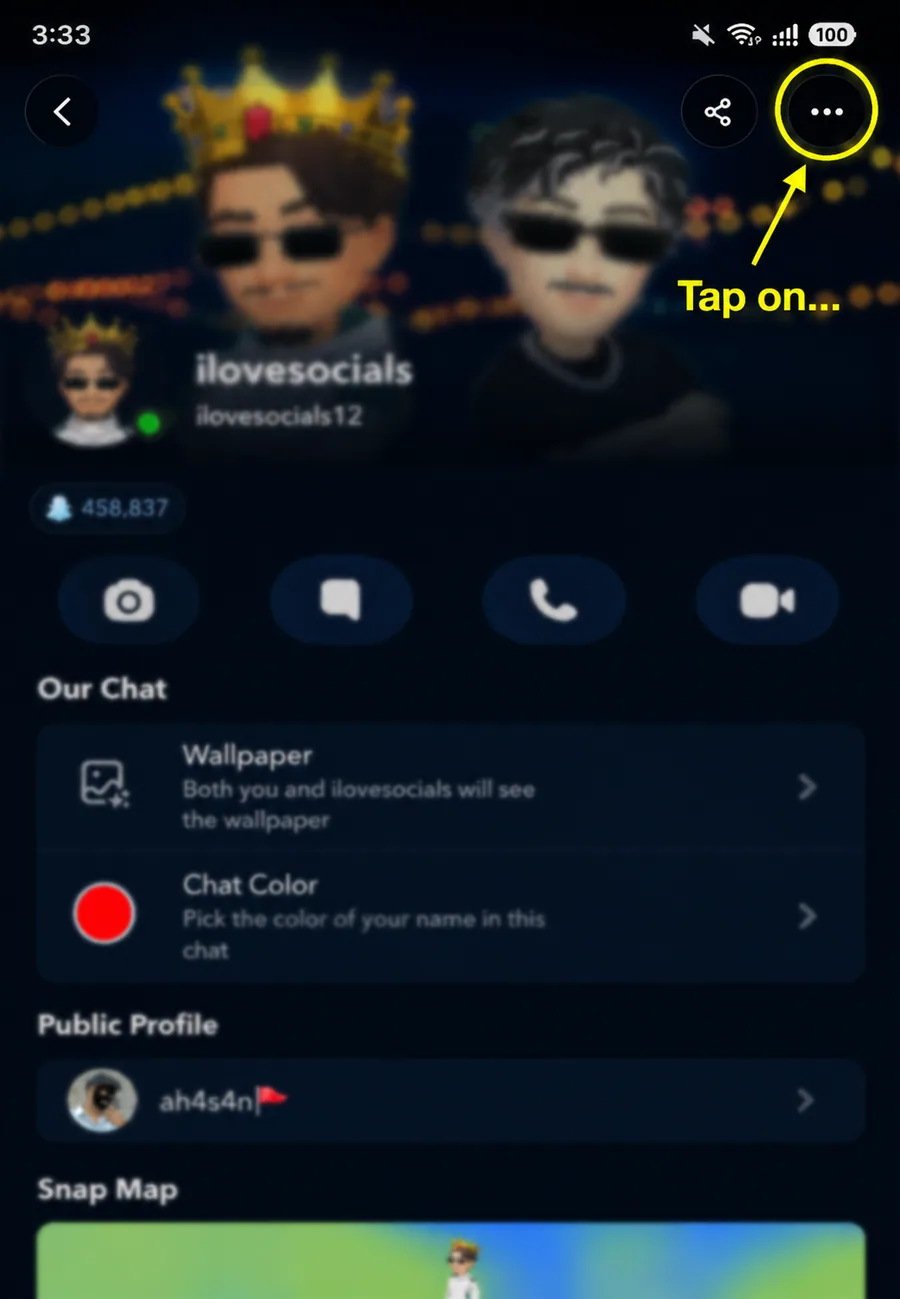
After opening the person's Friendship Profile, look at the top-right corner.
Tap the three-dot icon to open the available friendship options.
Step 3: Select Manage Friendship
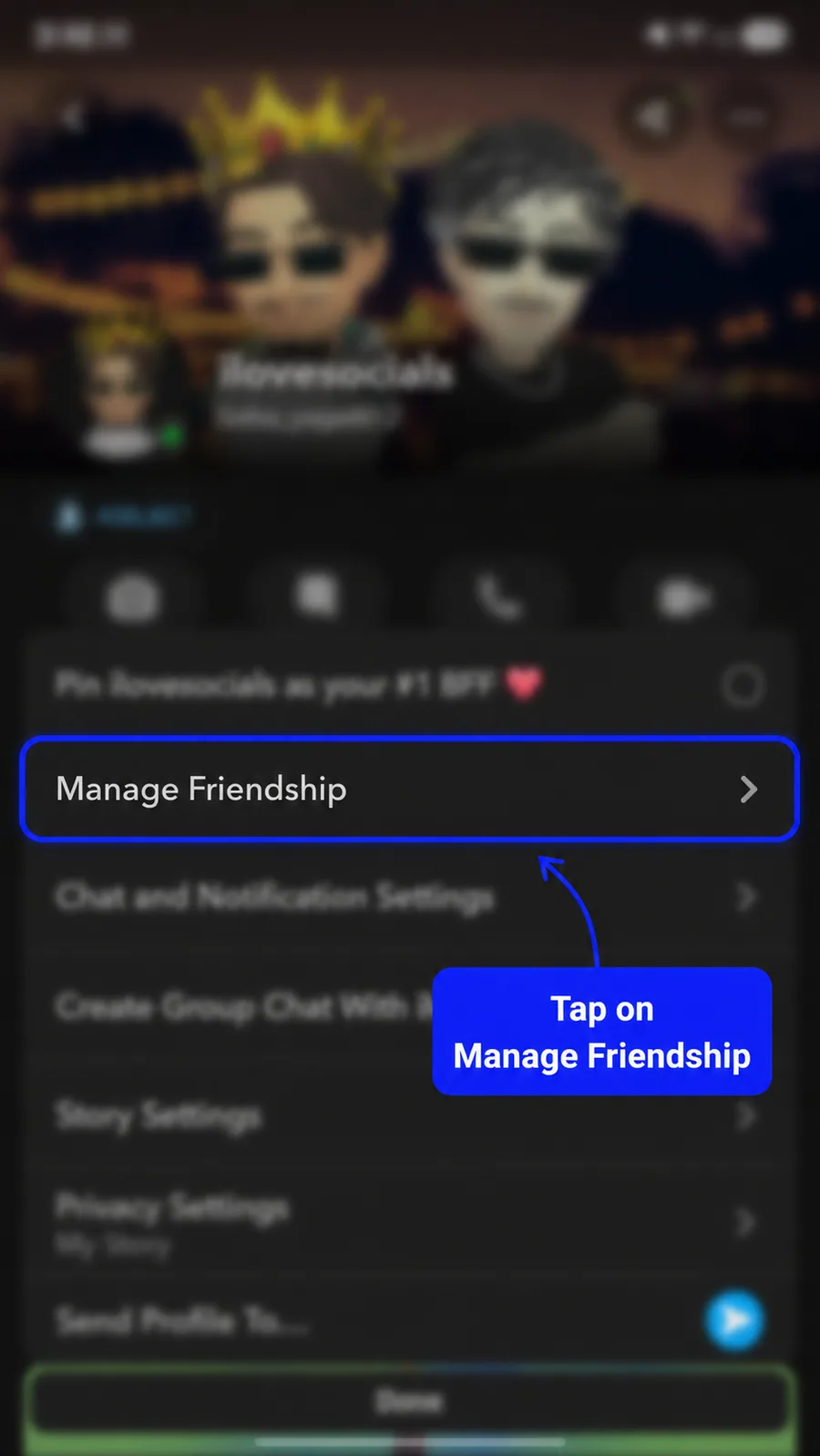
A menu with several options will appear.
Tap Manage Friendship to open the controls for that person.
Step 4: Tap Block
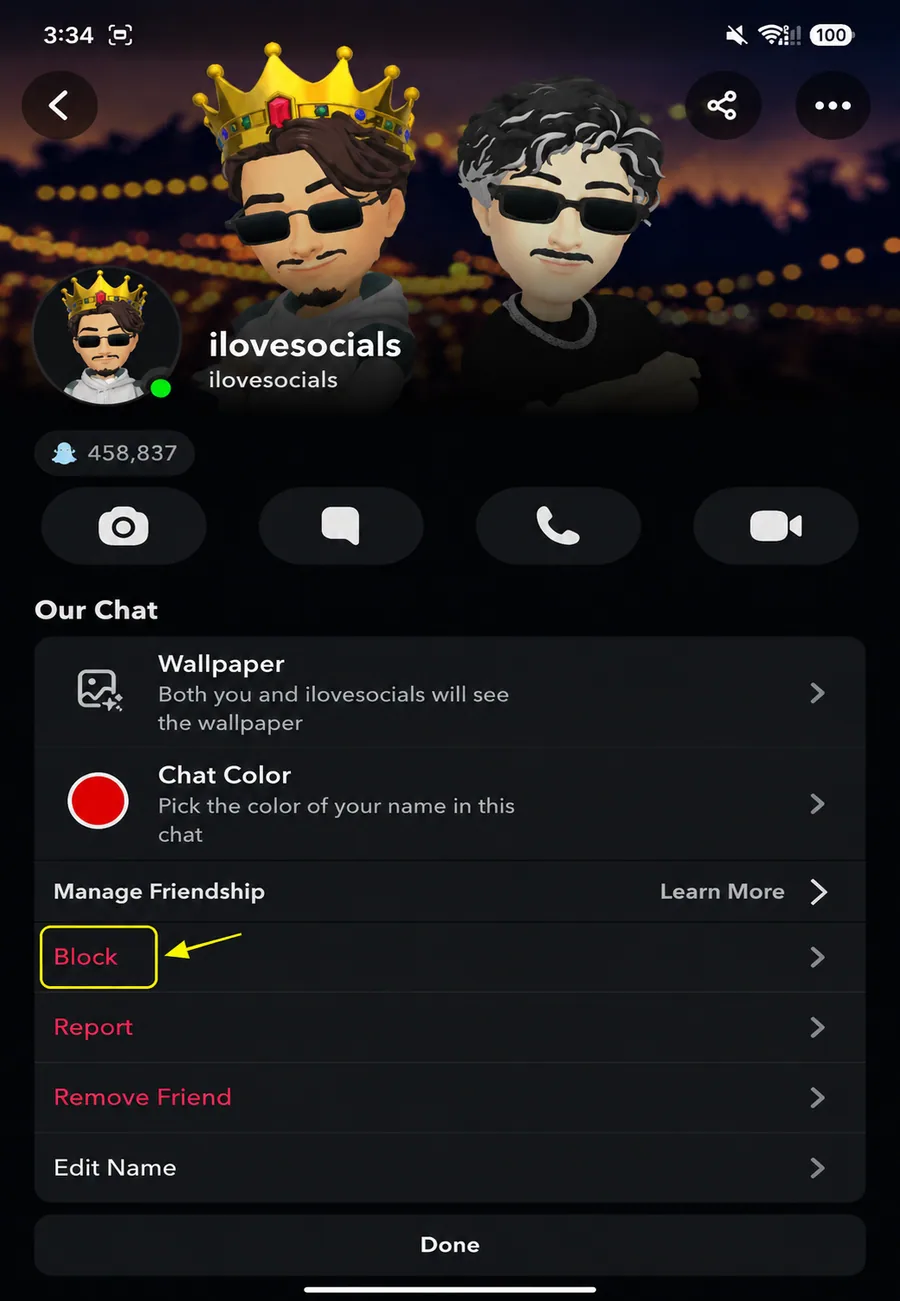
Inside the Manage Friendship section, tap Block.
Make sure you select the correct option. Remove Friend only removes the person from your friends list, while Block applies stronger restrictions.
Step 5: Confirm by Tapping Block
Snapchat will show a confirmation message explaining what blocking does.
Tap Block again to confirm your choice.
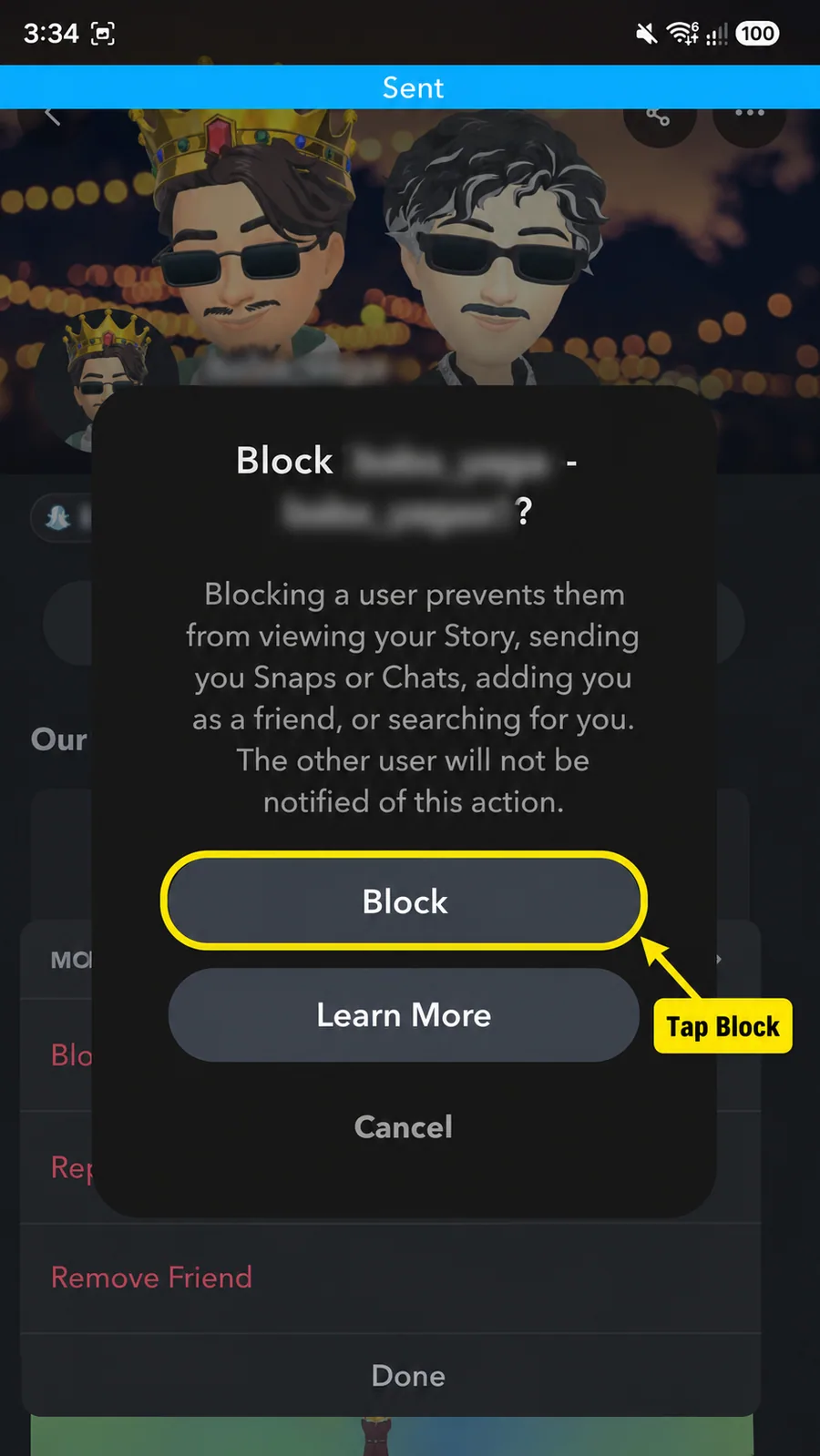
That's it. You have successfully blocked the person.
What Happens After You Block Someone?
After you block the person:
- They can no longer send you private Snaps or Chats.
- They can no longer view your regular Stories or friendship Charms.
- Your Snap Map location becomes hidden from them.
- Their account disappears from your Friends Feed.
- Your private conversation is no longer visible in the Chat screen.
- They cannot add you as a friend while blocked.
- They will not normally appear in your search results, Best Friends list, or Quick Add suggestions.
- Snapchat does not send them a blocking notification.
Blocking does not automatically remove both of you from a shared Group Chat. You may still see messages they send inside a group you both belong to, although they cannot privately message you or add you to new groups.
Will They Know You Blocked Them?
Snapchat does not send the person a direct notification when you block them.
They will not receive a message saying:
"This person blocked you."
However, they may eventually figure it out if:
- They can no longer find your account in normal search.
- Your conversation disappears.
- They cannot send you a Snap or Chat.
- They can no longer view your regular Story.
- They are unable to add your account.
So, the action happens quietly, but there is no guarantee that the person will never notice.
Can a Blocked Person Still See Your Public Content?
Possibly.
Blocking stops direct interaction, but it does not necessarily hide every public post from that person. Public Stories or Spotlight content may still be visible if you post publicly.
Avoid posting something publicly when you do not want that person, or anyone outside your friends list, to see it.
You can also review your privacy settings from your Snapchat profile to control who can contact you, view your Story, find you through Find Friends, or see your location.
Does Blocking Delete Your Old Chats?
Your one-to-one conversation will no longer appear in the Chat screen while the person is blocked.
However, previous Chat history may become available again if you unblock the person later. Blocking should not be treated as a way to permanently erase every saved message.
Remember that the other person may already have seen, saved, or captured content before you blocked them.
Can You Unblock the Person Later?
Yes.
Blocking is not permanent. You can unblock the account from your Snapchat settings whenever you want.
To unblock someone:
- Tap your profile icon.
- Open Settings.
- Scroll down and tap Blocked.
- Tap the X beside the account you want to unblock.
After unblocking them, direct interaction may become possible again. You may also need to add each other again before returning to a normal Snapchat friendship.
Blocking vs Removing a Friend
These options are not the same.
Use Remove Friend when you simply want to take someone off your friends list. Depending on your privacy settings, they may still be able to contact you or view your public content.
Use Block when you want to stop private communication, hide your regular Stories and location, and prevent the account from adding or normally searching for you.
Only want to clean up your friends list? Read our guide on how to remove a friend on Snapchat.
Why Can't I See the Block Option?
The option may be missing for a few reasons.
Open Manage Friendship
The Block button may appear inside Manage Friendship rather than directly in the first menu.
Press and Hold Their Name
Go to the Chat screen, press and hold the person's name, and tap Manage Friendship.
Open Their Profile
Tap the person's avatar, open the three-dot menu, and select Manage Friendship.
Update Snapchat
Open the App Store or Google Play Store and install the latest Snapchat update. The position or appearance of a menu may change between versions.
Restart the App
Close Snapchat completely and open it again if the menu does not load properly.
Blocking a Public Profile
For a Public Profile, open the profile, tap the three-dot icon, select Block, and confirm the action.
Final Thoughts
Blocking someone on Snapchat is a simple way to stop unwanted private contact and take control of who can interact with you.
Open the person's Friendship Profile, tap the three-dot menu, select Manage Friendship, choose Block, and confirm your decision.
Snapchat will not directly notify the person. They will no longer be able to privately Snap or Chat with you, view your regular Stories or location, or normally find and add your account.
You can always unblock them later from your settings if you change your mind.
Frequently Asked Questions
Q - How do I block someone on Snapchat?
Open their Friendship Profile, tap the three dots, select Manage Friendship, tap Block, and confirm by tapping Block again.
Q - Will Snapchat notify them?
No. Snapchat does not send a direct notification telling the person that you blocked them. They may still notice if they can no longer find or contact you.
Q - Can they send me Snaps or Chats?
No. A blocked account cannot privately send you Snaps or Chats.
Q - Can they see my Story?
They cannot view your regular Stories or Charms after being blocked. Public Stories or Spotlight content may still be visible if you post publicly.
Q - Can they see my Snap Map location?
No. Your Snap Map location becomes hidden from the blocked person.
Q - Can they search for my account?
Your account should no longer appear to them through normal Snapchat search while they are blocked.
Q - Does blocking remove them from my friends list?
Yes. The blocked person disappears from your Friends Feed and normal friendship connection.
Q - Can I unblock them later?
Yes. Open Snapchat Settings, go to Blocked, and tap the X beside their account.
Q - Will unblocking restore old Chats?
Snapchat says previous Chat history may become available again after you unblock the person, so blocking should not be treated as a way to permanently erase saved messages.
Q - Can we still see each other in a Group Chat?
Yes. Blocking does not automatically remove either person from a shared Group Chat. You may still see their messages inside that group.
Official sources
These official help pages were used to check the platform steps and rules in this guide.