How to Pin Someone as Your #1 BFF on Snapchat
We all have that one person we talk to more than anyone else on Snapchat.
It could be your best friend, partner, sibling, or someone you regularly send Snaps and messages to. If you use Snapchat+, you can privately pin one friend as your #1 BFF.
This does not send a public announcement or show everyone who you selected. Snapchat says only you can see the person you have pinned, unless both of you pin each other using Snapchat+.
In this guide, I will show you how to pin someone as your #1 BFF on Snapchat in a few simple steps.
What Does Pinning Someone as Your #1 BFF Mean?
Pinning someone as your #1 BFF privately selects that person as your number-one Best Friend on Snapchat.
This feature is useful when:
- You have one friend you talk to regularly.
- You want to keep your closest friend as your #1 BFF.
- You want to privately highlight someone important.
- You want to replace your current pinned Best Friend.
- You use Snapchat+ friendship features.
The feature is called Best Friends Forever, and it is only available with Snapchat+. You can pin only one #1 Best Friend at a time.
How to Pin Someone as Your #1 BFF on Snapchat
Follow these simple steps to pin one of your friends as your number-one Best Friend.
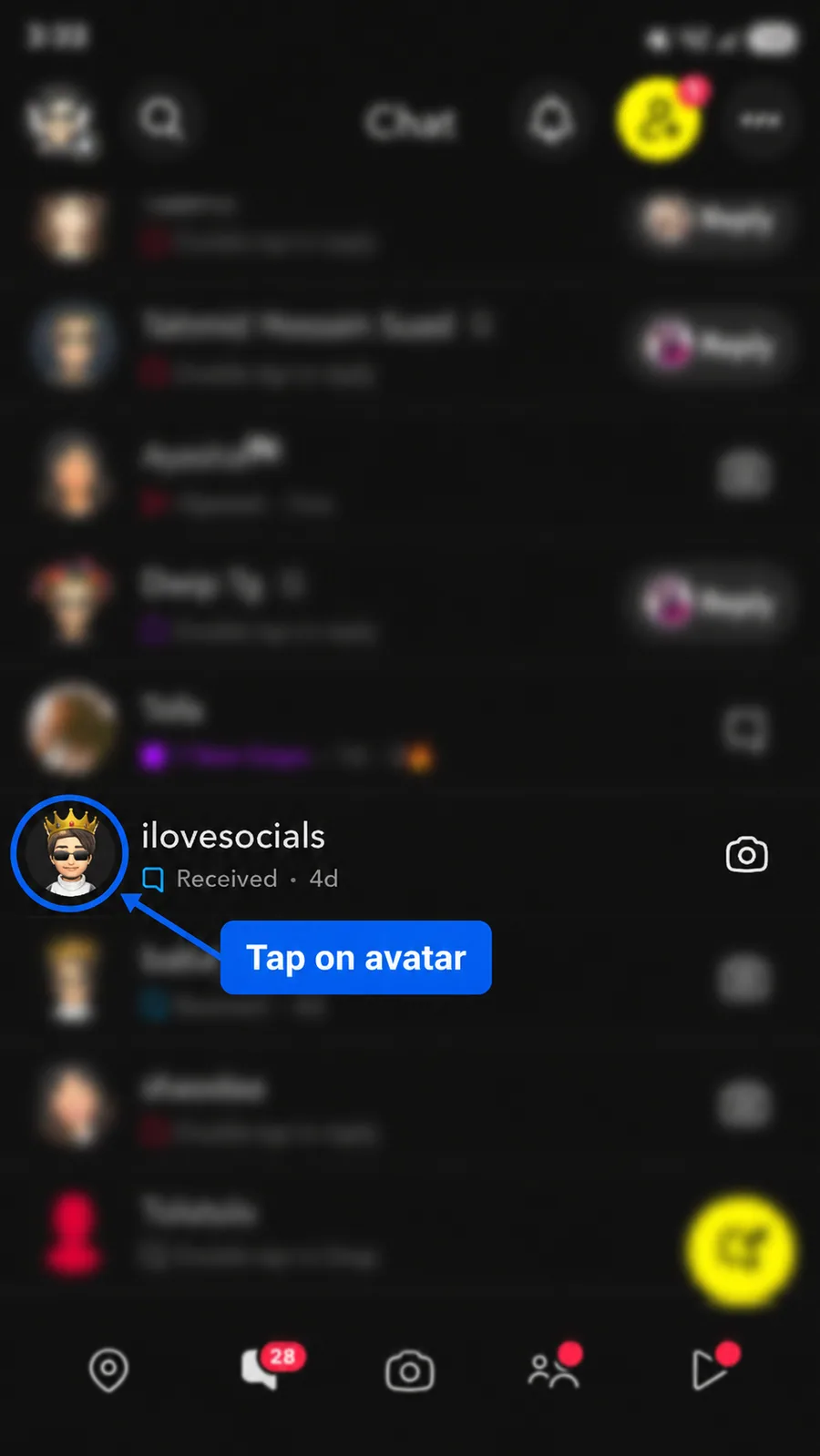
Step 1: Open Chat and Tap Their Avatar
Open the Snapchat app on your phone and go to the Chat screen.
Find the person you want to pin. Tap their Bitmoji or avatar beside the conversation to open their Friendship Profile.
Step 2: Tap the Three-Dot Menu
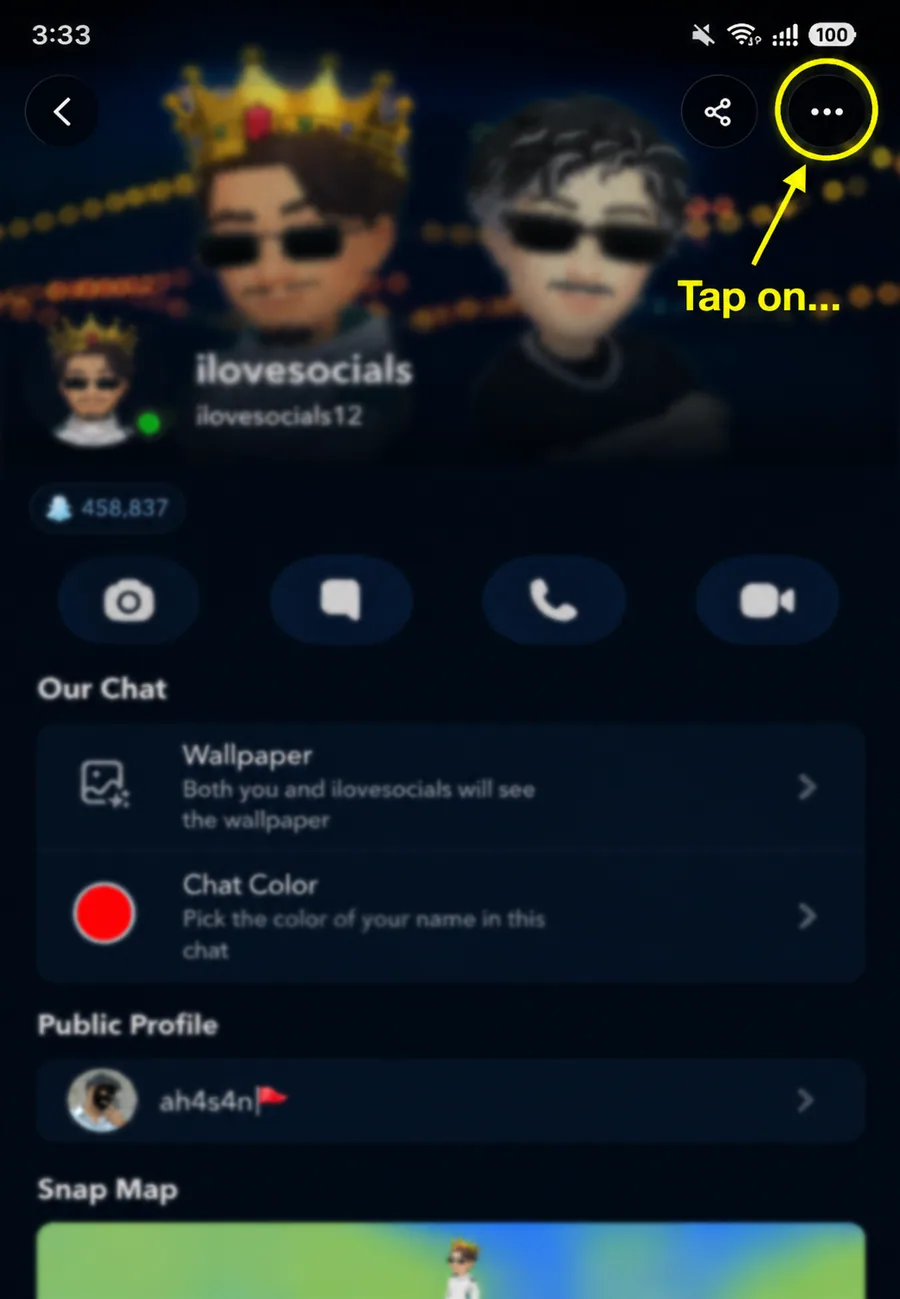
After opening the person's Friendship Profile, look at the top-right corner of the screen.
Tap the three-dot icon to open the available friendship options.
Step 3: Select Pin as Your #1 BFF
A menu will appear with several options.
Tap Pin [friend's name] as your #1 BFF.
The person's Snapchat name will appear inside this option.
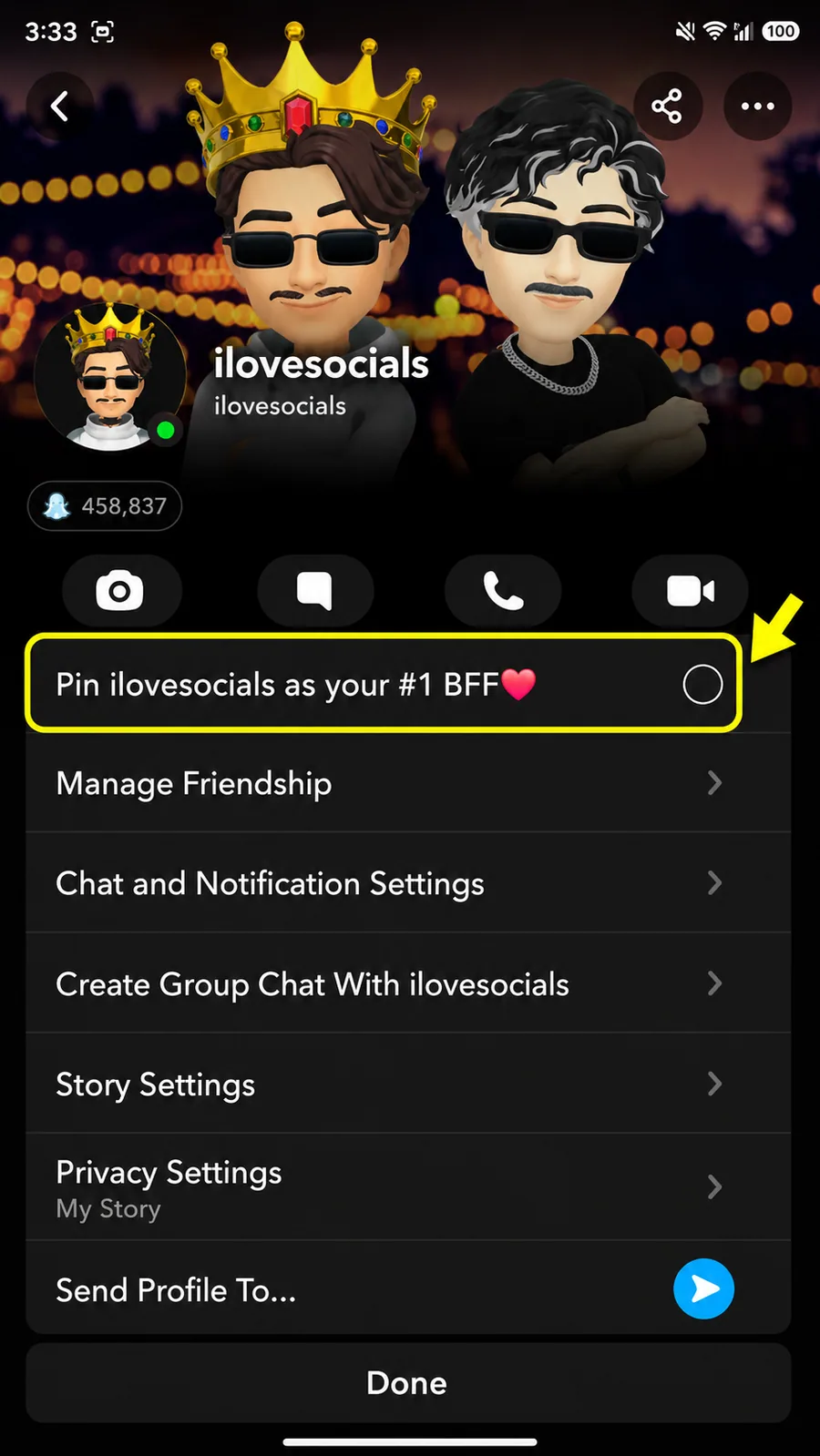
Snapchat also allows you to press and hold a friend from the Chat or Send To screen and choose Pin as your #1 Best Friend.
Step 4: Confirm the Pin
Snapchat will show a confirmation message.
Tap Pin [friend's name] to complete the process.
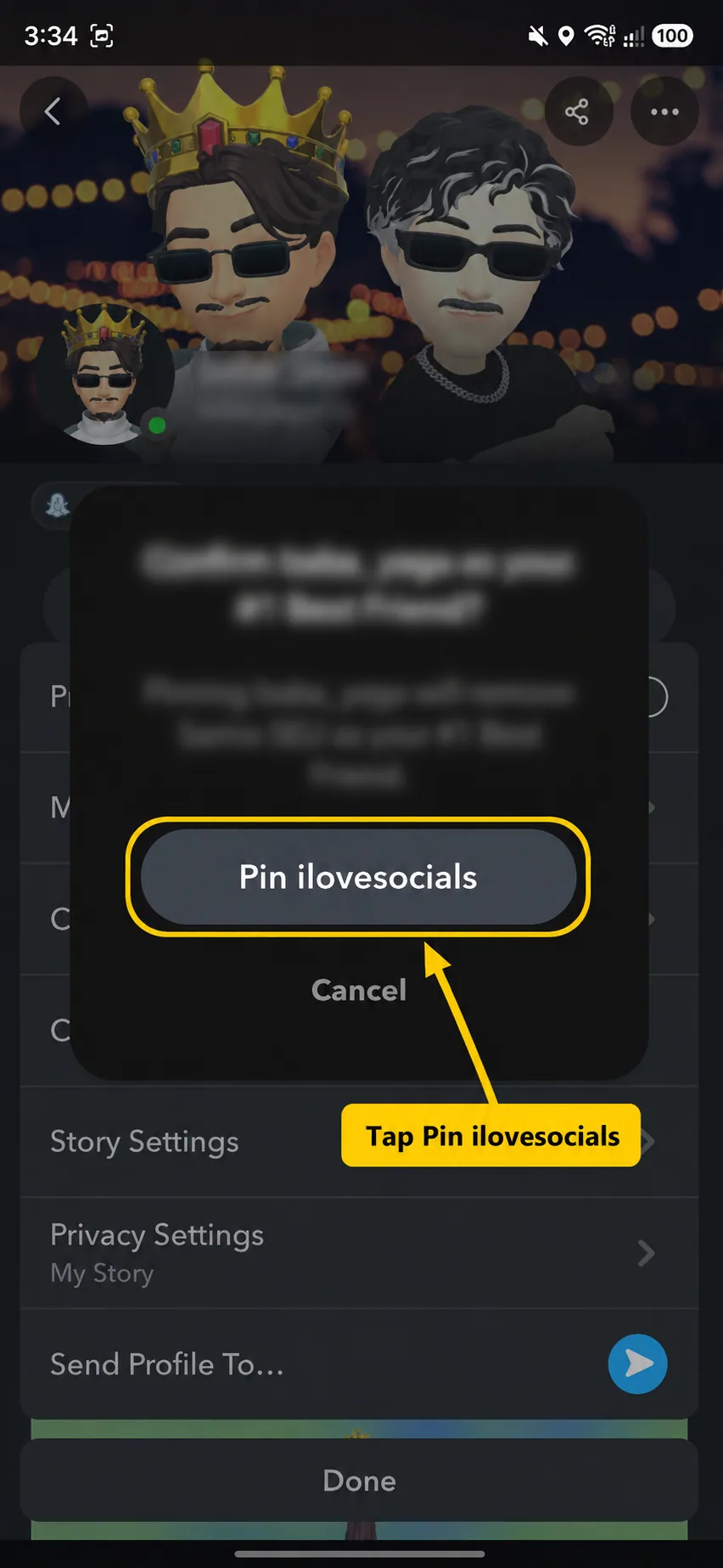
That's it. You have successfully pinned the person as your #1 BFF.
What Happens After You Pin Someone?
After you pin the friend:
- They become your privately pinned #1 Best Friend.
- Only one person can hold the pinned position.
- Your choice normally remains visible only to you.
- You can replace the person with another friend later.
- The friend remains on your regular Snapchat friends list.
Pinning someone does not mean they automatically pinned you back.
Will They Know You Pinned Them as Your #1 BFF?
Normally, they will not see who you selected.
Snapchat says only you can see the friend you have pinned as your #1 Best Friend.
However, there is one exception.
If the other person also has Snapchat+ and pins you as their #1 BFF, both of you may see a special Best Friend Emoji in the Chat feed and on your Friendship Profiles.
Can You Pin More Than One #1 BFF?
No.
You can only have one pinned #1 Best Friend at a time.
If you pin another person, the new friend will replace the person you selected before.
Can You Change Your Pinned BFF?
Yes. Your choice is not permanent.
Open another friend's profile and follow the same steps:
- Tap their avatar.
- Tap the three-dot menu.
- Select Pin as your #1 BFF.
- Confirm the new pin.
The newly selected friend will become your pinned #1 BFF.
Why Can't I See Pin as Your #1 BFF?
The option may be missing for a few reasons.
Check Your Snapchat+ Subscription
The #1 BFF pin is a Snapchat+ feature. It will not normally appear without an active subscription.
Make Sure They Are Your Friend
The person must be one of your Snapchat friends before you can pin them as your Best Friend.
Update Snapchat
Open the App Store or Google Play Store and check whether a new Snapchat update is available.
Restart the App
Close Snapchat completely and open it again. Newly activated Snapchat+ features may sometimes appear after restarting the app.
Try Pressing and Holding Their Name
Go to Chat, press and hold the person's name, and check whether Pin as your #1 Best Friend appears there. This is the method shown in Snapchat's official instructions.
Final Thoughts
Pinning someone as your #1 BFF is a simple way to privately select the person who matters most to you on Snapchat.
Open the person's Friendship Profile, tap the three-dot menu, choose Pin as your #1 BFF, and confirm your choice.
You can only pin one person at a time, but you can change the selected friend whenever you want. Snapchat normally keeps the choice private unless both of you use Snapchat+ and pin each other.
Frequently Asked Questions
Q - How do I pin someone as my #1 BFF on Snapchat?
Open the person's Friendship Profile, tap the three dots, select Pin as your #1 BFF, and confirm the pin.
Q - Do I need Snapchat+?
Yes. Pinning someone as your #1 Best Friend is a Snapchat+ feature.
Q - Will the person receive a notification?
Snapchat says only you can see who you pinned. However, a special emoji may appear if both of you have Snapchat+ and pin each other.
Q - Can I pin two people?
No. Only one person can be pinned as your #1 Best Friend at a time.
Q - Can I change my pinned friend?
Yes. Pin another person, and they will replace your current pinned BFF.
Q - What happens if we pin each other?
If both users have Snapchat+ and pin each other as their #1 BFF, Snapchat may display a special Best Friend Emoji for both people.
Q - Is this the same as pinning a conversation?
No. Pinning a BFF selects your private #1 Best Friend. Pinning a conversation only keeps that Chat near the top of your Chat screen.
Official sources
These official help pages were used to check the platform steps and rules in this guide.